
Need to extract text from YouTube videos? Whether you're a content creator repurposing video content, a student taking notes from educational videos, or a marketer analyzing competitor content, getting accurate YouTube transcripts is essential. The good news is there are multiple free methods to convert any YouTube video to text.
This comprehensive guide covers five proven methods to get YouTube video transcripts in 2024, from built-in features to advanced tools. You'll learn step-by-step processes, troubleshooting tips, and professional workflows that can transform your content creation process.
TL;DR: Quick Methods to Get YouTube Transcripts
Here are your fastest options for extracting YouTube video transcripts:
- YouTube's built-in feature - Free but limited formatting options
- Choppity - Best for content creators who need accurate transcripts plus repurposing tools
- Free online generators - Quick URL-based extraction with basic formatting
- Browser extensions - One-click access directly on YouTube
- Professional video editing tools - Integrated workflow for creators
For most content creators and professionals, Choppity offers the best combination of accuracy, formatting options, and content repurposing features in one platform.
Method 1: The Fastest Way - Using Choppity
While other tools simply extract basic transcripts, Choppity stands out as the most comprehensive solution for creators who need both accurate transcription and powerful content repurposing capabilities. Unlike basic transcript extractors, Choppity uses advanced AI to improve accuracy and offers intelligent formatting that makes your transcripts immediately usable.
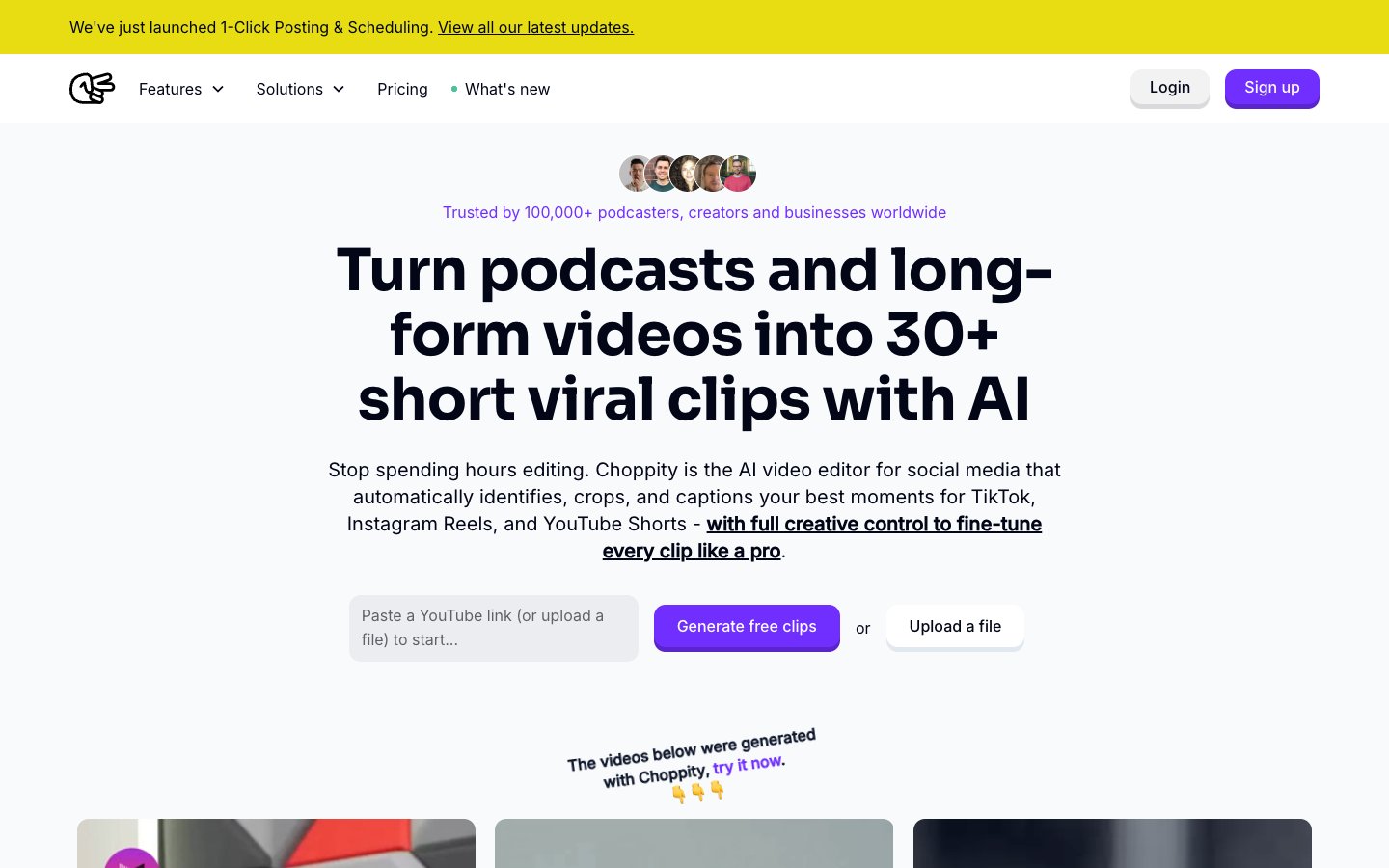
Here's how to get YouTube transcripts with Choppity:
- Visit Choppity and create your free account
- Paste your YouTube URL into the video input field
- Select transcription settings - choose your preferred language and formatting options
- Click "Generate Transcript" and wait for AI processing (usually 2-3 minutes)
- Review and edit the transcript using Choppity's built-in editor
- Export in multiple formats - TXT, SRT, Word, or directly repurpose into social content
Why Choppity outperforms basic transcript tools:
- Superior accuracy - AI-powered speech recognition with 95%+ accuracy
- Smart formatting - Automatically adds punctuation and paragraph breaks
- Speaker identification - Distinguishes between multiple speakers
- Content repurposing - Transform transcripts into blog posts, social media content, and more
- Batch processing - Handle multiple videos simultaneously
- Integration ready - Export to various formats and platforms
The real advantage becomes clear when you need to do something with your transcript beyond just reading it. Choppity's transcript editing tools let you refine and polish your transcripts directly, and the content repurposing features can instantly transform your video transcript into multiple content formats, saving hours of manual work.
Method 2: YouTube's Built-in Transcript Feature
YouTube automatically generates transcripts for most videos using speech recognition technology. This built-in feature is completely free and doesn't require any third-party tools, making it the most accessible option for basic transcript extraction.

Step-by-Step Instructions
Here's how to access and copy YouTube's auto-generated transcripts:
- Open the YouTube video you want to transcribe in your browser
- Click the three dots (...) below the video player on the right side
- Select "Show transcript" from the dropdown menu
- View the transcript panel that appears on the right side of the video
- Toggle timestamps on or off using the three dots in the transcript panel
- Select all text by clicking and dragging, or use Ctrl+A (Cmd+A on Mac)
- Copy the text with Ctrl+C (Cmd+C on Mac)
- Paste into your preferred editor and save as needed
The transcript will automatically scroll and highlight text as the video plays, making it easy to follow along or jump to specific sections.
Limitations to Know About
While YouTube's built-in transcript feature is convenient, it comes with several significant limitations:
- Accuracy varies widely - Depends on audio quality, accents, and technical terminology
- No punctuation - Text runs together without proper sentence structure
- Limited formatting - No paragraph breaks or speaker identification
- Availability restrictions - Not available for all videos, languages, or private content
- Timestamp formatting - Difficult to remove or customize timestamp display
- No export options - Manual copy-paste only, no file downloads
These limitations make YouTube's built-in feature suitable for quick reference but inadequate for professional content creation or repurposing projects.
Method 3: Free Online Transcript Generators
Several web-based tools specialize in extracting YouTube transcripts with improved formatting and download options. These services typically work by inputting a YouTube URL and receiving a formatted transcript file within minutes.

Top Free Tools Comparison
Here are the most reliable free online transcript generators available in 2024:
ToolAccuracyFeaturesLimitationsYouTube TranscriptBasicSimple extraction, timestampsNo formatting, adsDownsubGoodMultiple formats, downloadsLimited daily usageGetSubsGoodSRT/VTT support, clean UISubtitle-focused onlyChoppityExcellentAI accuracy, repurposing toolsPremium features require accountHow to Use URL-Based Extractors
Most free transcript generators follow a similar workflow:
- Copy the YouTube video URL from your browser's address bar
- Navigate to your chosen transcript tool website
- Paste the URL into the input field on the homepage
- Select your preferred language if multiple options are available
- Click the extract or generate button to start processing
- Wait for processing - usually takes 1-5 minutes depending on video length
- Review the generated transcript for accuracy and formatting
- Download or copy the result in your preferred format
While free tools provide basic functionality, they often lack the advanced features needed for professional content creation. For creators who regularly work with video transcripts, upgrading to a comprehensive solution like Choppity provides significantly better accuracy and time-saving features for content repurposing.
Method 4: Browser Extensions for Quick Access
Browser extensions offer the most convenient way to extract YouTube transcripts without leaving the video page. These tools add functionality directly to your YouTube viewing experience, enabling one-click transcript access and download options.

Best Chrome Extensions
Here are the top-rated Chrome extensions for YouTube transcript extraction:
- YouTube Transcript - Simple, clean interface with basic copy-paste functionality
- YouTube Summary with ChatGPT - Extracts transcripts and generates AI summaries
- Transcript for YouTube - Advanced formatting options and export features
- Video Transcript & Summary - Combines transcription with content analysis tools
Installation and Usage Guide
Setting up and using YouTube transcript extensions is straightforward:
- Visit the Chrome Web Store and search for your preferred extension
- Click "Add to Chrome" and confirm the installation
- Navigate to any YouTube video after installation completes
- Look for the extension icon near the video player or in your browser toolbar
- Click the extension button to activate transcript extraction
- Wait for processing - most extensions work in under 30 seconds
- Copy or download the transcript using the extension's interface
Pros and cons of browser extensions:
- Pros: Instant access, no website navigation, stays active across sessions
- Cons: Limited to one browser, basic formatting, potential privacy concerns
Extensions work well for quick transcript needs, but creators working with multiple videos or requiring advanced formatting should consider dedicated tools with more comprehensive features.
Method 5: Using Video Editing Tools with Transcript Features
Professional video editing platforms increasingly include built-in transcription capabilities, allowing creators to extract transcripts as part of their existing workflow. This approach is ideal for content creators who need transcripts as part of their video production process.
Professional Tools That Include Transcription
Several video editing platforms offer integrated YouTube transcript extraction:
- Descript - Industry-leading transcription accuracy with text-based video editing
- Riverside - Live recording platform with automatic transcription features
- CapCut - Free video editor with basic transcription capabilities
- Choppity - Specialized in transcription accuracy plus content repurposing automation
Workflow Integration Benefits
Using transcription within your video editing workflow offers several advantages:
- Import YouTube videos directly into your editing platform
- Generate transcripts automatically during the import process
- Edit video and transcript simultaneously - changes sync between both
- Create multiple content formats from the same transcript
- Export various deliverables - video clips, social posts, blog content
This integrated approach eliminates the need to juggle multiple tools and ensures consistency between your video content and written materials. For serious content creators, this workflow integration can save hours per week compared to using separate tools for each task.
Choppity excels in this space by offering both professional-grade transcript accuracy and powerful automation features that can transform a single YouTube transcript into multiple content formats with just a few clicks.
Method 6: API Solutions for Bulk Processing
For developers and businesses processing large volumes of YouTube content, API-based solutions provide automated transcript extraction at scale. This technical approach requires programming knowledge but offers unmatched efficiency for bulk operations.

When to Consider API Approaches
API solutions make sense in these scenarios:
- High volume processing - Dozens or hundreds of videos daily
- Automated workflows - Integration with existing business systems
- Custom formatting requirements - Specific output formats or data structures
- Real-time processing - Immediate transcript availability for new videos
Technical Requirements
Setting up API-based transcript extraction requires:
- YouTube Data API access - Obtain API credentials from Google Cloud Console
- Programming knowledge - Python, JavaScript, or similar scripting languages
- Server infrastructure - To handle processing and storage
- Rate limit management - Respect API quotas and usage restrictions
- Error handling - Manage failed requests and retry logic
While powerful, API solutions require significant technical expertise and ongoing maintenance. Most content creators and small businesses benefit more from user-friendly platforms that handle the technical complexity behind the scenes.
Pro Tips for Better Transcript Accuracy and Formatting
The quality of your extracted transcripts depends heavily on both the source audio and the processing method you choose. Understanding these factors can dramatically improve your results and save time on manual corrections.
Improving Auto-Generated Transcripts
Several factors influence transcript accuracy regardless of which tool you use:
- Audio quality matters most - Clear, high-bitrate audio produces significantly better results
- Background noise reduction - Music, ambient sounds, and multiple speakers reduce accuracy
- Speaking pace and clarity - Moderate pace with clear pronunciation works best
- Technical terminology - Industry jargon and proper names often require manual correction
- Accent considerations - Some speech recognition systems handle certain accents better than others
Best Practices for Different Content Types
Optimize your approach based on the type of video content you're transcribing:
- Educational videos - Look for tools that handle technical terms well and provide good paragraph formatting
- Interviews and podcasts - Prioritize speaker identification and conversation flow formatting
- Presentations - Focus on tools that preserve logical breaks and slide transitions
- Casual vlogs - Emphasize natural language processing for conversational speech patterns
- Multi-language content - Verify language detection accuracy before processing
Advanced tools like Choppity use AI specifically trained on different content types, automatically adjusting their approach based on video characteristics. This results in transcripts that require minimal manual editing and are immediately ready for content repurposing.
Troubleshooting Common Transcript Issues
Even with the best tools and techniques, you'll occasionally encounter situations where standard transcript extraction methods don't work. Understanding these limitations and knowing alternative approaches can save significant time and frustration.

When Transcripts Aren't Available
Several factors can prevent transcript extraction from YouTube videos:
- Creator disabled captions - Some creators turn off automatic caption generation
- Very new uploads - YouTube may not have processed captions yet (wait 24-48 hours)
- Poor audio quality - Extremely low-quality audio may not trigger automatic processing
- Non-speech content - Music videos, instrumental content, or videos without speech
- Unsupported languages - Some languages have limited automatic transcription support
Handling Private or Restricted Videos
Transcript extraction becomes more challenging with access-restricted content:
- Private videos - Only the uploader can access transcripts through YouTube Studio
- Age-restricted content - May require account verification to access transcripts
- Geographically blocked videos - VPN usage may be necessary for access
- Copyright-claimed videos - Some tools may refuse to process copyright-protected content
Alternative solutions for problematic videos:
- Screen recording with audio - Capture video locally, then transcribe the recording
- Manual transcription - Use playback speed controls and transcription software
- Audio extraction tools - Convert to audio-only format, then use speech-to-text services
- Professional services - Human transcription for critical or challenging content
When standard methods fail, having a reliable backup solution becomes crucial. Professional platforms like Choppity often handle edge cases better than free tools and provide customer support to resolve technical issues quickly.
Advanced Use Cases: From Transcripts to Content Gold
Getting the transcript is just the beginning. The real value comes from transforming that raw text into multiple content formats that extend your reach and engagement across different platforms and audiences.

Content Repurposing Strategies
A single YouTube video transcript can become the foundation for an entire content marketing campaign:
- Blog post creation - Expand key points into detailed articles with proper structure and SEO optimization
- Social media content - Extract quotable moments, statistics, and key insights for Twitter, LinkedIn posts
- Email newsletter segments - Summarize main points for subscriber updates and educational content
- Podcast show notes - Create detailed episode summaries and timestamp guides
- Course materials - Transform tutorials into structured learning modules
- Infographic data - Extract statistics and key points for visual content creation
Research and Analysis Applications
Transcripts unlock powerful analytical capabilities for competitive intelligence and market research:
- Competitive analysis - Analyze competitor video content for messaging, positioning, and strategy insights
- Trend identification - Process multiple videos to identify emerging topics and industry trends
- Audience research - Analyze comment sentiment in conjunction with video content
- Content gap analysis - Identify topics covered by competitors but missing from your content
- Keyword research - Extract natural language patterns and terminology from successful videos
This is where Choppity truly shines compared to basic transcript extraction tools. While other services stop at providing raw text, Choppity's AI-powered content repurposing features can automatically transform your transcripts into platform-optimized content formats. With one-click generation, you can create social media posts, blog outlines, email sequences, and more - turning a single video transcript into weeks of content across multiple channels.
The platform's intelligent formatting ensures each output is optimized for its intended platform, whether that's Twitter's character limits, LinkedIn's professional tone, or blog post SEO requirements. This automation can save content creators 10-15 hours per week compared to manual repurposing methods.
Comparison: Which Method Should You Choose?
With multiple transcript extraction methods available, choosing the right approach depends on your specific needs, technical skill level, and content creation goals.

Our recommendations by use case:
- Students and researchers - Start with YouTube's built-in feature, upgrade to Choppity for important projects
- Content creators and marketers - Choppity for professional accuracy and repurposing features
- Casual users - Browser extensions for convenience and regular use
- Enterprise and agencies - Professional video editing tools or custom API solutions
Frequently Asked Questions
Here are the most common questions about extracting YouTube video transcripts:

Can I get transcripts from any YouTube video?
Not all YouTube videos have transcripts available. Auto-generated captions depend on clear audio, supported languages, and creator settings. Private videos, music-only content, and very new uploads may not have transcripts available. Most educational, business, and speaking-focused videos will have usable transcripts.
How accurate are YouTube's automatic transcripts?
YouTube's automatic transcript accuracy ranges from 60-90% depending on audio quality, speaker accent, background noise, and technical terminology. Professional tools like Choppity typically achieve 95%+ accuracy using advanced AI processing and can handle challenging audio conditions better than basic extraction methods.
Are there any legal concerns with extracting YouTube transcripts?
Extracting publicly available transcripts for personal use, research, or accessibility purposes is generally acceptable. However, republishing or commercializing transcript content without permission may violate copyright laws. Always respect copyright restrictions and consider fair use guidelines when repurposing transcript content.
Can I get transcripts in languages other than English?
YouTube supports automatic transcription in dozens of languages including Spanish, French, German, Japanese, and many others. The availability and accuracy vary by language, with more common languages typically having better support. Some transcript extraction tools also offer translation services to convert transcripts between languages.
What's the difference between transcripts and closed captions?
Transcripts contain the spoken words from a video in text format, while closed captions include additional information like speaker identification, sound effects, and music descriptions. Transcripts are better for content repurposing, while captions are designed for accessibility and viewing alongside video content.
How long does it take to generate a transcript from a YouTube video?
Processing time varies by method and video length. YouTube's built-in transcripts are instantly available if already generated. Online tools typically take 2-5 minutes for most videos. Professional services like Choppity usually process videos in 2-3 minutes while providing superior accuracy and formatting options.
Conclusion
Getting accurate YouTube video transcripts doesn't have to be complicated or time-consuming. Whether you need quick reference text or professional-quality transcripts for content repurposing, there's a method that fits your needs and technical skill level.

For occasional use, YouTube's built-in transcript feature and free online generators provide adequate results. Browser extensions offer convenient access for regular YouTube users, while API solutions serve enterprise-level requirements.
However, for content creators, marketers, and professionals who regularly work with video transcripts, investing in a comprehensive solution pays dividends. Choppity stands out by combining superior transcript accuracy with powerful content repurposing tools that transform single videos into multiple content formats automatically.
The key is matching your tool choice to your actual workflow and goals. If you're simply taking notes or doing research, basic free tools work fine. But if you're building a content strategy around video repurposing, the time saved and quality improvements from professional tools like Choppity quickly justify the investment.
Start with the method that matches your immediate needs, but don't overlook the potential for transcript-based content repurposing to dramatically expand your content reach and engagement across multiple platforms.
Try Choppity for Free →

Written by
Michael WongYouTuber with 215K+ subscribers and founder of Choppity. Building AI tools that help creators repurpose content at scale.