


Record your screen. Bring yourself into the lesson.
Show what you know with your screen, camera and voice. Record in your browser, pause when you need a moment, and turn your take into a tutorial, demo or course lesson in Choppity.
Record, edit and share in one place.
A simple creative flow
From an idea to a recorded lesson
Choose your setup. Explain your idea. Shape the finished video.
Choose your sources
Record your screen, webcam or both. Select what to share and choose your camera and microphone before you begin.
Check your setup
Watch the audio meter as you speak, check your camera preview, and get ready for the countdown.
Record at your pace
Walk through your explanation. Pause and resume when you need a moment, or restart for a fresh take.
Make it ready to share
Stop recording and let preparation finish. Open the editor to refine your lesson, then share a link or download it.
01 Choose your view
Show the screen, the person, or both.
Use screen capture for a practical walkthrough, webcam recording for a personal explanation, or combine them to guide viewers through a lesson. Choose your shared source and devices before you start so your setup is ready for the take.
02 Check your voice
Make sure your explanation comes through.
Select your microphone and use the input meter to check that your voice is coming through before recording. A quick setup check helps you focus on what you want to teach when the countdown ends.
03 Take a breath
Pause without ending the recording.
Need a moment to gather your thoughts? Pause and resume the same take. If you want to begin again, restart with your existing setup. After recording, use the editor to trim the edges and tighten the explanation.
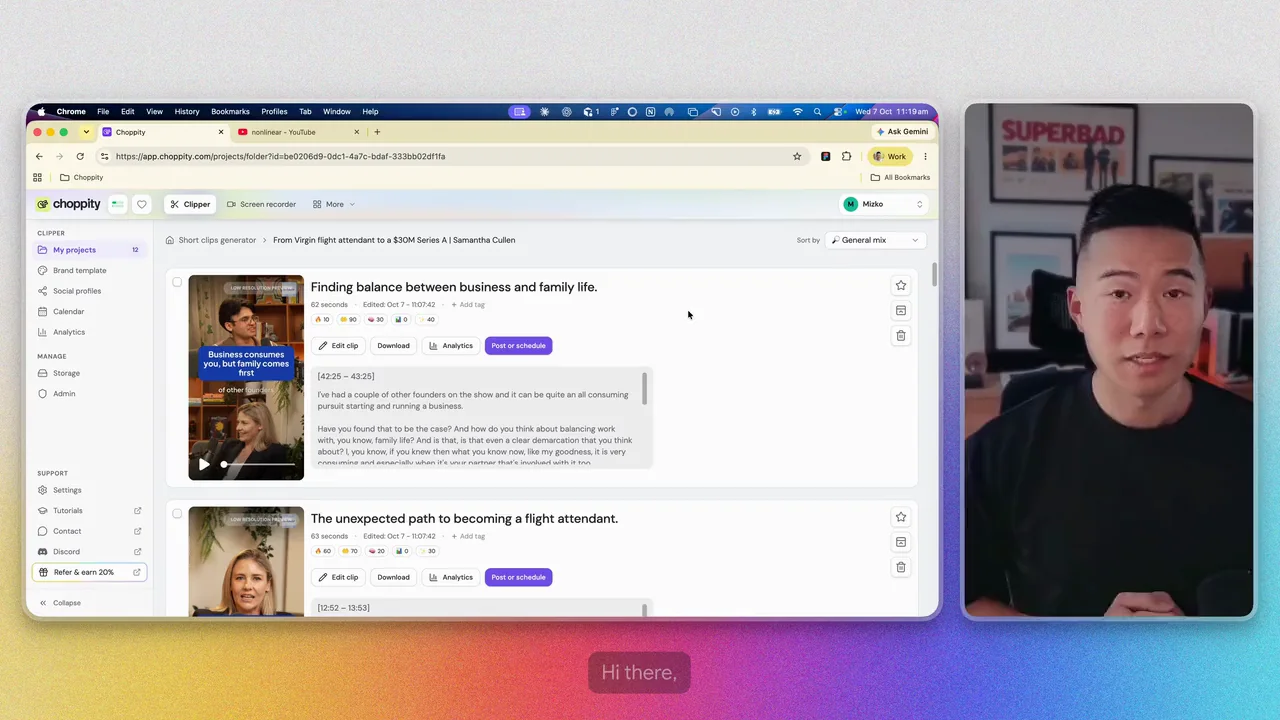
04 Keep moving
Preparation starts while you record.
Your recording uploads during capture, giving preparation a head start. Once processing finishes, continue in Choppity to style your screen-and-camera layout, edit the lesson, share a viewing link or create short clips from the recording.
A few helpful answers
Good to know
before you start.
Learn the details of screen recorder, then find the plan that fits your workflow.
View plans and pricing Do I need a browser extension to record?
Browser recording does not require an extension or desktop installation. Allow screen, camera and microphone access for the sources you choose.
Can I record just my screen or just my webcam?
Yes. Choose screen, camera or both before you start. Recording both gives you separate screen and camera footage to arrange together in the editor.
Can I switch devices while recording?
Choose your camera, microphone and shared source before starting. To change them, finish the take and set up a new recording.
How long can I record in the browser?
A browser recording can run for up to 2.5 hours. For a longer course or presentation, record it as separate lessons or sections.
Is my recording ready to edit as soon as I stop?
Your recording uploads while you capture it, then finishes processing. The editor and Make clips become available when the recording and transcript are ready for those actions.
Your next idea starts here
Your next lesson starts with a recording.
Record your screen, camera and voice, then turn your take into a tutorial, demo or course lesson.
Start recording