
To clip GTA6 videos, import a recording, generate short-clip suggestions, then refine the transcript, captions and vertical crop before publishing. Choppity brings these tasks into one workflow for YouTube Shorts, TikTok and Instagram Reels.
This GTA 6 clipping tutorial takes you from a long recording to a finished short. Use the steps for your own gameplay, commentary or authorized creator footage.
- Add footage: upload a recording or paste a supported video link.
- Find moments: generate suggestions and choose clips with a clear payoff.
- Edit: trim the transcript, correct captions and check the crop.
- Publish: export or connect social profiles to post or schedule.
What you need before clipping GTA6
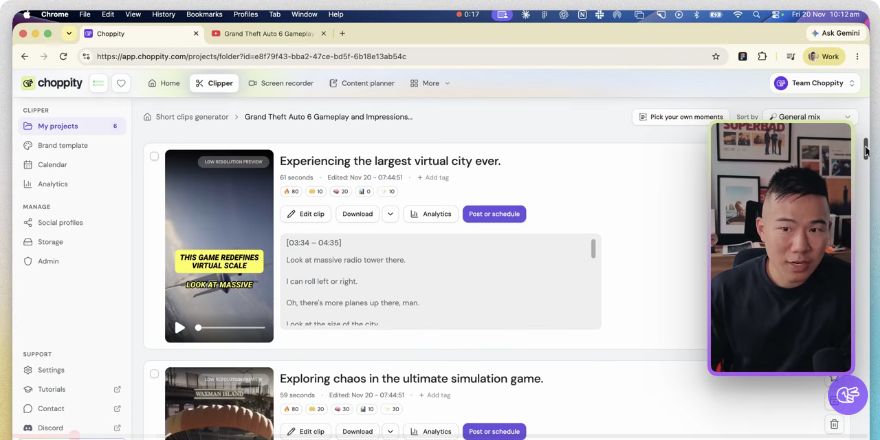
Prepare these three things before starting:
- A source recording: gameplay, a stream, commentary, a reaction or an analysis video.
- Permission: use footage you own or are authorized to edit and publish.
- A destination: choose Shorts, TikTok or Reels so you can plan the format and framing.
A long gameplay source, such as a jackfrags recording, can contain several useful moments. Choose each one on its own merits rather than trying to publish every minute. Credit the original creator where appropriate and follow the agreed usage terms.
How to clip GTA6 videos and streams
1. Add your source video
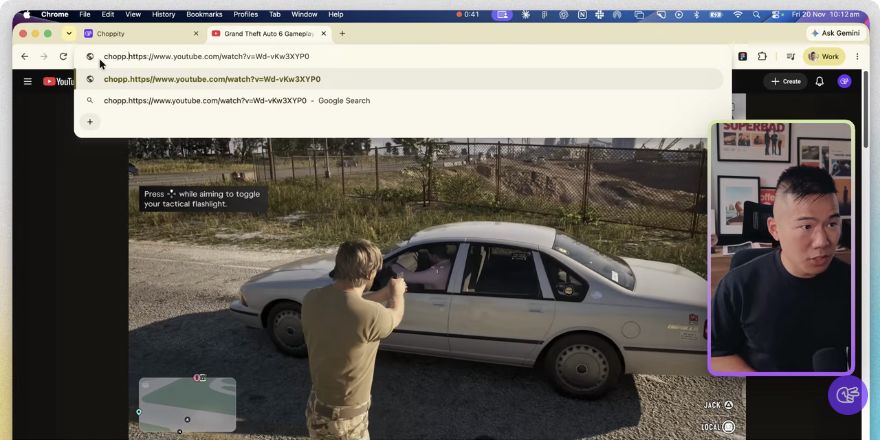
Open the GTA6 Clipper, then choose an import method:
- Upload: add an authorized recording from your device.
- Paste a link: use a supported video URL.
- Use the shortcut: place chopp.ing/ before a supported video URL to open clip setup.
Use the URL of the actual video, rather than a channel or search page. Start with a source containing a clear reaction, exchange or gameplay payoff.
2. Choose a starting duration and style
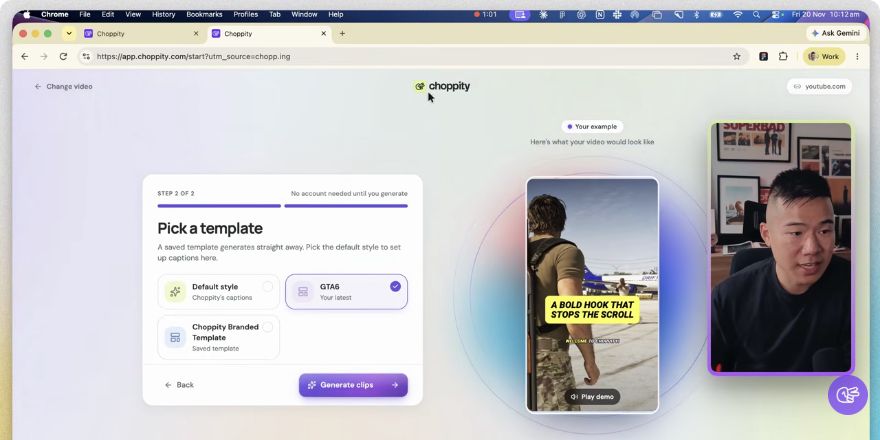
Set up the clip before generating suggestions:
- Duration: one minute is a useful starting point for a complete moment. Shorten or extend the final edit to suit the footage.
- Template: choose the prebuilt GTA6 brand template for a consistent hook and caption treatment.
- Layout: use portrait for vertical social feeds.
- Text: choose readable fonts, strong contrast and a hook that accurately describes the payoff.
If you have a creator’s brand template or a campaign brief, use its fonts, colors and placement requirements. Save the style to keep a batch consistent.
3. Generate clips and review suggestions
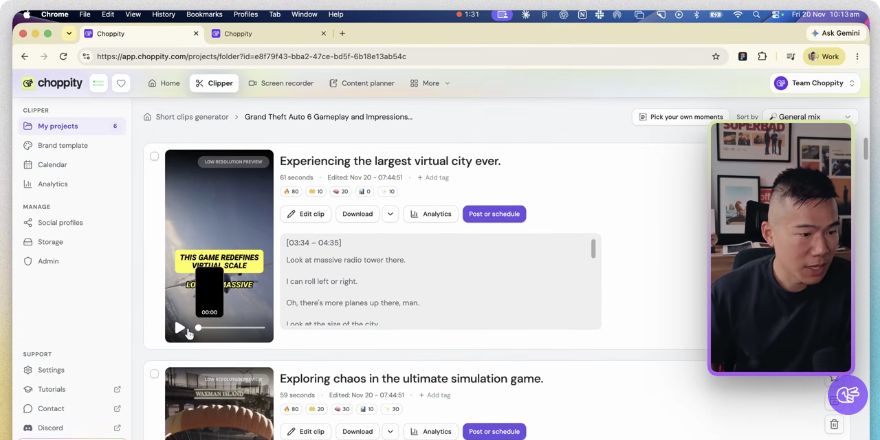
Generate the clips, then watch the suggestions. Processing time and the number of useful results vary with the recording.
- Check the opening: does it give the viewer a reason to keep watching?
- Keep context: can someone understand the moment without the full stream?
- Find a payoff: look for a reaction, funny exchange, discovery or useful answer.
- Review the layout: inspect tracking, hooks, captions and zooms.
AI suggestions are a starting point. Select the strongest moments for editing rather than exporting the whole batch automatically.
4. Tighten the story through the transcript
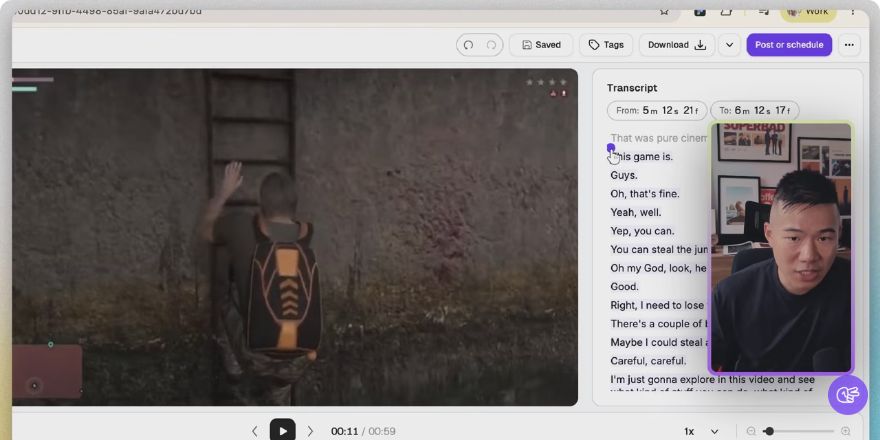
Open a chosen clip in the editor and work through these checks:
- Set the start: move it closer to the interesting action while keeping the setup understandable.
- Set the end: finish after the payoff, before the conversation drifts.
- Remove dead time: review silence, filler-word and retake removal.
- Review language: apply profanity treatment when the destination or brief requires it.
- Correct captions: check names, locations, game terminology and slang.
- Save: use Save and exit after reviewing the changes.
Watch the edit after removing words or pauses. Background game audio can continue through gaps in speech, and an automatic cut may interrupt the action.
5. Check the crop and platform safe zones
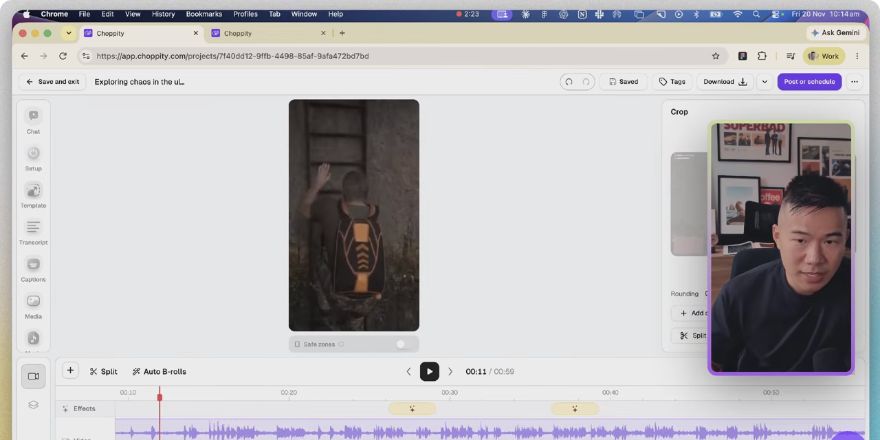
A vertical crop should keep the story visible on a phone. Review these elements scene by scene:
- Action: keep the character, vehicle or important object inside the frame.
- Facecam: include it when the creator’s reaction is part of the payoff.
- HUD: preserve essential game information where it matters.
- Text: turn on safe zones and keep captions and hooks clear of platform controls.
- Transitions: watch what happens when the subject or camera moves.
Select a scene to adjust its crop and orientation. A composition that works at the start may need repositioning later.
6. Save, export or schedule
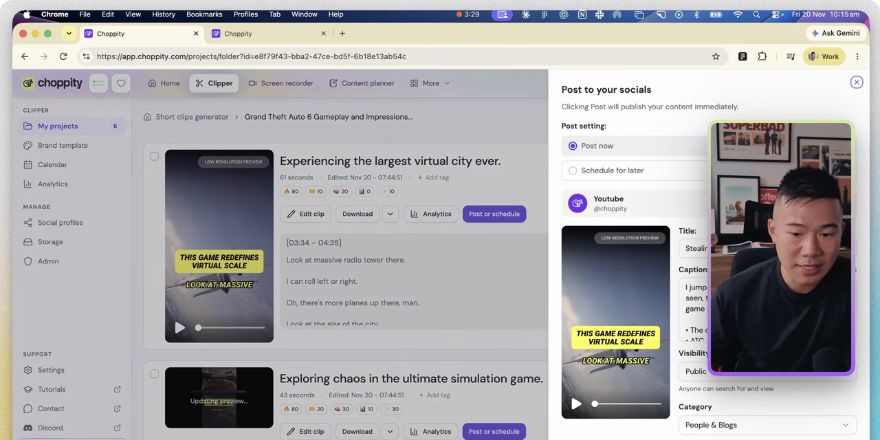
Choose the publishing route that fits your workflow:
- Export a file: download the finished clip for manual publishing.
- Post directly: connect the destination accounts under Social profiles, then choose Post or schedule.
- Schedule: select the account, publication time and post copy before confirming.
Before sharing:
- Watch the finished clip and listen for abrupt cuts.
- Check captions, crop and opening seconds on a phone-sized screen.
- Review the title, description and any required campaign hashtag.
- Check current plan limits and export settings for the available final resolution. A low-resolution preview is for reviewing the edit.
What makes GTA6 clips worth watching?
The most useful GTA6 clips focus on one main idea. Match the edit to the type of moment:
- Reactions: include both the trigger and the response.
- Funny moments: keep enough setup for the joke to land.
- Tips: present the question and useful answer together.
- Action: keep the key subject visible and avoid covering it with text.
Use an accurate opening hook, cut unnecessary detours and stop after the payoff. Compare retention and comments to improve the next batch.
How to choose the best GTA6 clipper
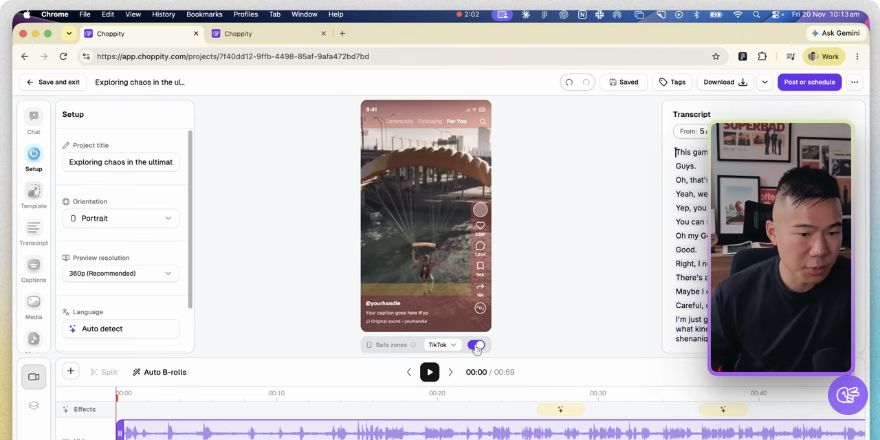
Test the tool with footage that resembles your regular recordings. Compare:
- Imports: support for your recording format or source links.
- Suggestions: useful moments you can review and change.
- Captions: readable styles and easy corrections.
- Framing: control over gameplay, facecam and scene crops.
- Delivery: export options, account connections and scheduling.
- Plan fit: allowances and limits that match your production volume.
Speech-led commentary and silent action can require different amounts of manual editing. Choppity combines clip suggestions, transcript editing, captions and framing; compare current plans against your needs.
Frequently Asked Questions
Can beginners clip GTA6 without editing experience?
Yes. Start with generated suggestions and make changes through the transcript. Review every clip’s meaning, captions and framing before sharing.
Can GTA6 clips be made for Shorts, TikTok and Reels?
Yes. Choose portrait, check platform safe zones and keep the action and captions visible. Review the exported clip on a phone-sized screen.
Can someone else’s GTA6 stream be clipped?
Only use footage you are authorized to edit and publish. For a campaign, follow its approved-source and publishing requirements.
Does an AI clipper guarantee views?
No. Audience response depends on the source moment, presentation and distribution. Use viewer feedback to improve future clips.
Make your first GTA6 clip
- Choose one authorized recording and one clear moment.
- Generate suggestions and refine the strongest option.
- Check captions, crop and sound.
- Export or schedule the finished clip.
Start clipping GTA6 with Choppity. For campaign work and creator services, read how to make money clipping GTA6.

Written by
Michael WongFounder & CEO · Founder of Choppity
Content creator for 12+ years with 215K+ YouTube subscribers and an active presence across YouTube, Instagram, LinkedIn, and X. As founder of Choppity, Michael has personally tested every major AI clip maker — giving him a unique perspective on what works and what doesn't for real creators.